YouTube Image Resizer - All 35 Sizes in One ZIP
Upload one image, get every YouTube format — thumbnails, channel banners, profile pictures, Shorts, community posts, ads, and live assets — pre-sized and ready to post. 100% in-browser, no sign-up.
Drop your image here
or click to browse · PNG, JPG, WEBP, GIF · Max 20 MB

A Batch YouTube Image Resizer, Cropper & Size Converter in One Tab
Publishing a video usually means producing the thumbnail, then the banner, then the profile picture, then whatever the community post needs — four separate trips through four separate tools. One upload here feeds all 35 presets at once, so resizing, cropping and channel art all come out of the same tab in a single pass.
Bulk resize images for YouTube — every size in one ZIP
Select the presets you need and resize all YouTube images at once. Download all YouTube sizes as a single ZIP — thumbnail, banner, profile picture, Shorts and community post together — instead of exporting one file at a time. A batch image resizer for YouTube turns a 20-minute chore into one click.
A private image resizer that works with no upload
This is a fully client-side YouTube resizer: the HTML5 Canvas API does the work in your browser, so your image is never uploaded to a server. Open DevTools → Network and you'll see no file leave your device. After the first load it also runs as an offline image resizer for YouTube — useful on flights and bad hotel Wi-Fi.
Focal point crop for YouTube banners, plus a safe zone cropper
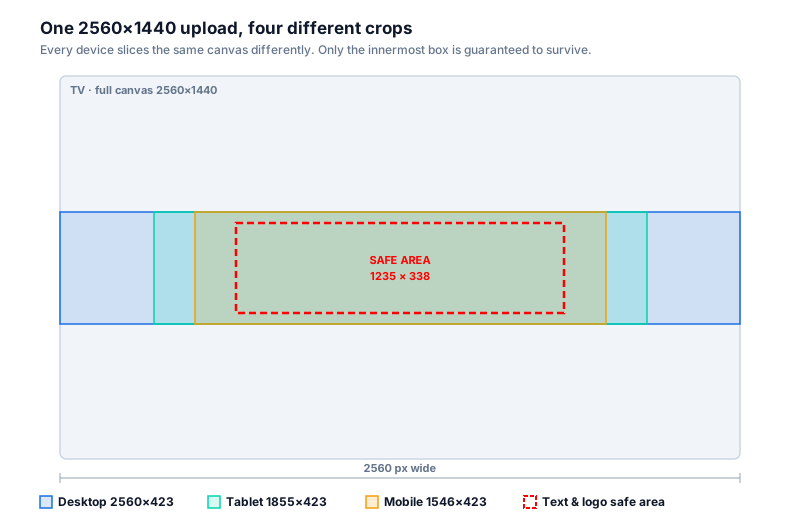
Cropping a wide photo down to a 9:16 Shorts thumbnail normally decapitates whoever is in it. Drag the focal point onto the face or logo and every preset crops around that point instead of the geometric centre. The banner presets also work as a safe zone cropper for YouTube banner text and logos: export the full 2560×1440 canvas alongside the 1546×423 mobile strip and check your text survives both before you upload.
Advertisement
YouTube Image Sizes
Verified against YouTube Help: manage your channel branding and YouTube Help: add custom thumbnails on , cross-checked against live layout measurements and Resizo preset reviews.
For the reasoning behind each dimension — why the banner safe area is smaller than the canvas, and which sizes actually change what viewers see — read our full YouTube image sizes guide.
- Profile & Banner
- Use 800×800 px for channel profile pictures (rendered at 98×98) and 2560×1440 px for channel banners, keeping logos and text inside the 1235×338 px safe area.
- Thumbnails, Shorts & Community
- Video thumbnails are 1280×720 px (16:9, min width 640 px — YouTube now accepts up to 3840×2160), Shorts use 1080×1920 px, and community posts work best at 1080×1080 px.
- Ads & Live
- YouTube ad presets cover 1280×720 in-stream and discovery placements, 300×250 display ads, 1920×1080 desktop mastheads, and 2560×1440 live stream banners.
- Privacy & Export
- Images are processed locally in your browser, and all selected YouTube presets can be downloaded together as one ZIP file.
Resize an Image to Exact YouTube Pixel Dimensions
Been handed a pixel size and told to hit it exactly? Each dimension below is a one-click preset in the resizer above, so you can resize an image to exactly 2560x1440, 1280x720, 1080x1920, 1080x1080, 800x800 or 1546x423 pixels without typing numbers or guessing where the crop lands.
- 2560 × 1440 Channel art, banner & live stream banner
- 1280 × 720 Video thumbnail, end screen & chapter image
- 1080 × 1920 Shorts thumbnail & cover frame (9:16)
- 1080 × 1080 Square community post image
- 800 × 800 Channel profile picture (shown as a circle)
- 1546 × 423 Banner strip visible on phones
- 1920 × 1080 Full-HD thumbnail & desktop masthead
- 300 × 250 YouTube display ad image
- 150 × 150 Video watermark / corner brand icon
The same presets double as a YouTube banner size converter and a YouTube thumbnail size converter. Drop in a screenshot, a phone photo or an old 1546×423 banner and Resizo acts as a 2560x1440 image converter for channel art, or a 1280x720 image converter for thumbnails, upscaling or downscaling as needed to hit the exact size.
Complete YouTube Size Reference — All 35 Formats
Every preset in the resizer above, organized by content type. YouTube's recommended minimum upload size varies by format.
Deep reference: the same 35 formats in plain Markdown, for scripting or offline use — resize-image-for-youtube.md.
Channel Branding
| Format | Dimensions |
|---|---|
| Profile Picture | 800 × 800 px |
| Banner — TV (full canvas) | 2560 × 1440 px |
| Banner — Desktop | 2560 × 423 px |
| Banner — Tablet | 1855 × 423 px |
| Banner — Mobile | 1546 × 423 px |
| Banner — Safe Zone | 1546 × 423 px |
| Watermark / Brand Icon | 150 × 150 px |
| End Screen Element | 1280 × 720 px |
| Subscribe Watermark | 150 × 150 px |
Video Thumbnails
| Format | Dimensions |
|---|---|
| Thumbnail — Standard | 1280 × 720 px |
| Thumbnail — Max Res | 1920 × 1080 px |
| Thumbnail — Small | 640 × 480 px |
| Thumbnail — Medium | 320 × 180 px |
| Thumbnail — HQ | 480 × 360 px |
| Playlist Thumbnail | 1280 × 720 px |
| Playlist — Square | 1080 × 1080 px |
Community Posts
| Format | Dimensions |
|---|---|
| Community — Square | 1080 × 1080 px |
| Community — Landscape | 1280 × 720 px |
| Community — Portrait | 1080 × 1350 px |
Shorts & Stories
| Format | Dimensions |
|---|---|
| YouTube Story | 1080 × 1920 px |
| Shorts Thumbnail | 1080 × 1920 px |
| Shorts Cover Frame | 1080 × 1920 px |
YouTube Ads
| Ad Format | Dimensions |
|---|---|
| Display Ad | 300 × 250 px |
| Display Ad — Large | 336 × 280 px |
| Overlay Ad | 480 × 70 px |
| Skippable In-Stream | 1280 × 720 px |
| Non-Skippable In-Stream | 1280 × 720 px |
| Masthead — Desktop | 1920 × 1080 px |
| Masthead — Mobile | 412 × 232 px |
| Sponsored Card Image | 300 × 300 px |
| Companion Banner | 300 × 60 px |
| Video Discovery Ad | 1280 × 720 px |
Live & Learning
| Format | Dimensions |
|---|---|
| Live Thumbnail | 1280 × 720 px |
| Live Stream Banner | 2560 × 1440 px |
| Chapter Thumbnail | 1280 × 720 px |
How to Resize an Image for a YouTube Banner, Thumbnail or Profile Picture
-
1
Open Resizo and upload your image
Drag and drop, paste from clipboard, or click to browse. Works with JPG, PNG, WebP, and GIF.
-
2
Select YouTube presets
Choose from 35 YouTube size presets across 6 categories — channel branding, video thumbnails, community posts, Shorts & stories, ads, and live & learning.
-
3
Choose output format and download
Set JPG quality to 85–90 for YouTube. Click Download all as ZIP to get every selected size at once. Your images never leave your browser.
Expert YouTube Strategy: Thumbnail CTR Data & Best Practices
By the Resizo Editorial Team Last reviewed
We build and maintain the 35 YouTube presets in the resizer above, and re-check every dimension on this page against YouTube Help each time Google revises it.
Why YouTube Thumbnail Dimensions Matter for Click-Through Rate
1280×720 px at 16:9 is the long-standing baseline most creators export to, but YouTube Help now recommends 3840×2160 px (4K), with a minimum width of 640 px, so thumbnails stay sharp on connected-TV screens. Either way the aspect ratio is the part that matters: 16:9 is what the player and every preview surface expect. Thumbnails with centered focal points hold up better than designs that push critical elements into the outer 10% of the frame, which gets visually lost on small mobile tiles. Resizo's YouTube resizer includes all 35 YouTube formats (1280×720 and 1920×1080 thumbnails, 2560×1440 channel banners, 1080×1920 Shorts) with a focal-point crop tool—ensuring your design stays centered and visible across all devices.
Thumbnail File Size & Platform Compression Impact
YouTube re-compresses every thumbnail on upload, so a clean, high-quality source matters more than a huge file. YouTube Help puts the desktop thumbnail limit at 50 MB while mobile uploads are still capped at 2 MB, but a 1280×720 thumbnail exported at JPG quality 85–90 averages only 180–220 KB and withstands YouTube's re-compression while maintaining visual sharpness. PNG thumbnails are converted to JPG anyway (adding an extra re-encode cycle), so JPG is usually the safer choice. Pro tip: test your thumbnail at the 16:9 mobile viewport (roughly 640×360 px) to simulate how most viewers will see it before deciding final contrast and text size.
Channel Banner Safe Zone & Responsive Design for Mobile
Channel banners upload as one 2560×1440 px canvas (minimum 2048×1152, max 6 MB) but display very differently per device: TVs show the full 2560×1440, desktop crops to roughly 2560×423, tablets to 1855×423, and phones to 1546×423. YouTube Help defines the text-and-logo safe area as 1235×338 px in the center of the canvas — anything outside it can be cropped away on some device. (The older 1546×423 figure still circulating in guides corresponds to the mobile crop.) Resizo exports all these banner variants simultaneously, letting you design once and preview across all device outputs—essential for YouTube channel branding that works everywhere.
How to Fit the Whole Picture on a YouTube Banner
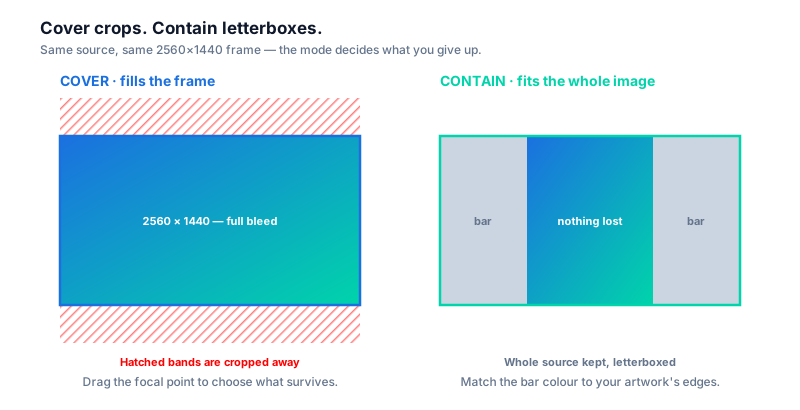
If YouTube keeps cutting off the edges of your artwork, the cause is almost always aspect ratio rather than resolution: YouTube expects a 16:9 canvas and crops anything wider or taller to fit. To fit the whole picture on a YouTube banner, switch the resizer above from Cover to Contain. Cover fills the 2560×1440 frame and crops the overflow; Contain scales your entire image down until it fits inside the frame and letterboxes the remaining space, so nothing is lost. The trade-off is visible bars, so pick a background colour in your editor that matches your artwork's edges before exporting. If you'd rather keep the full-bleed look, stay on Cover and drag the focal point onto the part of the image that must survive the crop — the subject stays centred in the 1235×338 safe area on every device.
How to Make a Picture Fit the YouTube Profile Circle
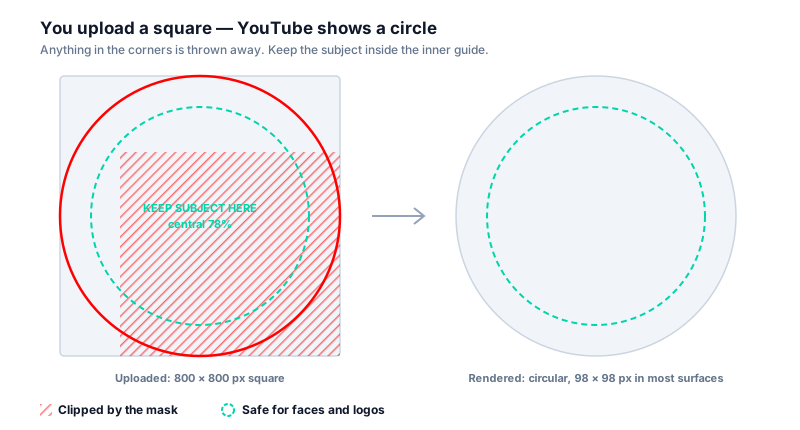
YouTube profile pictures are uploaded as squares and then masked into a circle, which is why corners disappear and off-centre faces end up half cropped. Upload a square 800×800 px image (YouTube Help says it renders at 98×98 in most surfaces) and keep the subject inside an imaginary circle touching the edges — roughly the central 78% of the frame. Anything in the corners will be clipped by the mask. Use the 800×800 profile picture preset above with the focal point on the face, then squint at the small preview: if it reads clearly at thumbnail scale it will read on mobile. Logos with thin text almost never survive the circle mask, so crop to the mark or icon rather than the full lockup.
YouTube Banner Image Too Small? Here's the Fix
YouTube rejects channel art below 2048×1152 px outright, and images just above that limit look soft once a TV stretches them across a 2560-pixel canvas. If you see a "banner image too small" error, upscale to the full 2560×1440 px recommended size before uploading — the resizer above will scale a smaller source up to the exact preset dimensions. Upscaling cannot invent detail that was never captured, so always start from the largest original you have: the camera file rather than the version you already posted somewhere, and a PNG or high-quality JPG rather than a screenshot of a compressed image. Keep the final file under the 6 MB banner limit, which a JPG at quality 85–90 comfortably does even at 2560×1440.
Advertisement
Frequently Asked Questions
What is the ideal YouTube banner (channel art) size?
The ideal YouTube channel banner size is 2560×1440 px (16:9), with a minimum of 2048×1152 px and a 6 MB file limit. Keep logos and text inside the central 1235×338 px safe area — desktop, tablet, and mobile each crop the banner to a different strip (2560×423, 1855×423, and 1546×423 respectively).
What size should YouTube thumbnails and community post images be?
Video thumbnails should be 1280×720 px (16:9, minimum width 640 px) — YouTube now accepts up to 3840×2160 px for extra sharpness on TVs. Community post images work best at 1080×1080 px (1:1), and Shorts thumbnails use 1080×1920 px (9:16).
How do I resize an image for YouTube without losing quality?
To resize for YouTube without losing quality, start from the exact pixel dimensions, export at JPG quality 85–90, and use a tool like Resizo that processes images in your browser without server re-compression. YouTube applies its own compression on upload, so a high-quality source file is essential.
Does this YouTube image resizer upload my image?
No. All processing happens in your browser using the HTML5 Canvas API. Your images never leave your device — no server, no cloud, no privacy risk.
What is the YouTube Shorts thumbnail size?
1080×1920 px (9:16). Shorts use a vertical format and the thumbnail must match this orientation. Resizo includes a dedicated Shorts preset that crops your image to the exact 9:16 ratio with focal-point control.
Can I resize one image to all YouTube sizes at once?
Yes. Resizo includes all 35 YouTube size presets — thumbnails, channel banners, profile pictures, Shorts, community posts, ads, live assets, and more. Upload one image, select the presets you need, and download them all in a single ZIP file.
How do I fit the whole picture on my YouTube banner?
Switch the resize mode from Cover to Contain. Cover fills the 2560×1440 banner frame and crops whatever overflows; Contain scales your entire image down until it fits and letterboxes the rest, so nothing is cut off. YouTube crops to 16:9, so any image with a different aspect ratio will lose edges on Cover. If you want full-bleed instead, keep Cover and drag the focal point onto the part that must survive the crop.
How do I make a picture fit the YouTube profile circle?
Upload a square 800×800 px image and keep the subject inside an imaginary circle touching the edges — about the central 78% of the frame. YouTube masks the square into a circle, so anything in the corners gets clipped. Use the 800×800 profile picture preset with the focal point on the face, and crop logos down to the icon rather than the full lockup, since thin text rarely survives the mask at 98×98.
How do I resize an image to exactly 2560×1440 or 1280×720 pixels?
Upload your image and pick the matching preset — there is no need to type dimensions. 2560x1440 is the Channel Art / Banner preset and 1280x720 is the Video Thumbnail preset, and both export at those exact pixel dimensions. The same applies to 1080x1920 for Shorts, 1080x1080 for community posts, 800x800 for profile pictures and 1546x423 for the mobile banner strip. Sources that are smaller are upscaled and larger ones downscaled to hit the exact size.
What is the best free alternative to Canva for resizing YouTube images?
Canva, Adobe Express, Kapwing and Snappa are design suites — the right choice when you want to build a banner from scratch with templates and fonts. If you already have finished artwork and only need it in every YouTube size, Resizo is the faster route: no account, no watermark on exports, no monthly download cap, and your image is never uploaded because everything runs in your browser. It also works as a free YouTube banner maker without a watermark in the narrow sense — it produces the finished banner file at the correct size, but it does not design one for you.
How Resizo Compares to Canva, Adobe Express, Kapwing & Snappa
Comparing Resizo to Canva, Adobe Express, Kapwing, Snappa or Sprout Social's Landscape? Those are design suites — the right pick when you want to build channel art from scratch with templates, fonts and stock photos. Resizo deliberately does one job instead: it takes artwork you already have and returns every YouTube size. If you only need the resizing step, here is what you get:
- No account or sign-up. Open the page, drop an image, download. Nothing to register, nothing to cancel.
- No watermark and no export cap. Every file comes out clean, however many you export.
- Your image stays on your device. Cloud editors upload first and resize on a server; Resizo resizes in the browser tab.
- All 35 YouTube sizes in one ZIP. One pass covers banner, thumbnail, profile, Shorts, community, ads and live.
The points above describe Resizo. Plan limits and features at other tools change often — check their current pricing pages before comparing.
Ready to resize your YouTube image?
Free, instant, private. No sign-up. Works on mobile and desktop.
Resize My YouTube Image →Work with many images at once
Process hundreds of images in a single run — all in your browser. Download results as a ZIP.
More Free Image Tools
Advertisement